The BTR2SQL GUI Migration Utility assists developers during and after a data migration. It contains all the features that a developer needs to migrate an existing Btrieve application to the target backend. Mertech designed the user-friendly, intuitive user interface with the assumption that you do not require detailed knowledge of the target backend.
BTR2SQL works with the files listed in the FILE.DDF. You must select a file before you can perform any database-related operation on the file. You can select either a single file or multiple files to perform the operation in a single or batch mode.
Main Screen Display
After selecting the FILE.DDF, the display lists of all of the data files in the FILE.DDF. This is the main area for completing all tasks related to data migration. You can perform actions on one or more data files.
This dialog box allows you to identify and select files you want to migrate. The icon next to the file name indicates whether or not the file has been migrated. An icon without an arrow indicates that the file is still in the native Btrieve format while an icon with a green arrow shows that a table has been migrated to the target RDBMS. The status line at the bottom of the dialog box displays the number of files currently selected and the target server and database.

Figure 3 File Selection Dialog Box
All
Selects all entries in the list
None
De-selects all selected files in the list
Invert
Toggles the entries. All marked entries become unmarked and all unmarked entries become marked.
Valid Btrieve Files
Selects all of the data files in the FILE.DDF that have a valid and accessible Btrieve data file.
Valid SQL Tables
Selects all of the data files that have been migrated and checks for errors in accessing tables on the SQL backend.
Convert Data Files
<Right-click> on any file/files in the File Selection dialog box and choose one of the options available from the popup menu. Procedures for these menu options are described on the following pages. The displayed menu depends on whether one or multiple files are selected.
One File Selected |
Multiple Files Selected |

|

|
Figure 7 File Options - Popup Menu
The first option, Convert to database, creates the table, copies the data and then adds indexes, all in one operation. It can operate on one file at a time or multiple files. The Convert Data Files dialog box is different depending on whether one file or multiple files are selected.
One File Selected |
Multiple Files Selected |

|

|
Figure 8 Convert (Data) Files Dialog Box
NOTE: When multiple files are selected for migration, all selection options are available on the main tab. The fields and indexes are migrated as defined in the DDFs. When you select OK to convert multiple files, the program migrates each file separately, instead of as a batch process.
Options Tab
Figure 9 Convert File – Options Tab
Store Server Name in INT File
If you check this option, the server name is stored in the INT file during migration. If you leave this option unchecked (the default), the server name is NOT stored in the INT file during migration. At runtime, the driver looks for the server name in 1) the INT file, 2) the mds.ini file. If the server name is not stored in either file, the driver displays the Login dialog box.
Store Schema Name in INT File
If you check this option, the schema name is stored in the INT file during migration. If you leave this option unchecked (the default), the schema name is NOT stored in the INT file during migration. At runtime, the driver looks for the schema name in 1) the INT file, 2) the mds.ini file. If the schema name is not stored in either file, the driver displays the Login dialog box.
Store Database Name in INT File
If you check this option, the database name is stored in the INT file during migration. If you leave this option unchecked (the default), the database name is NOT stored in the INT file during migration. At runtime, the driver looks for the database name in 1) the INT file, 2) the mds.ini file. If the database name is not stored in either file, the driver displays the Login dialog box.
Tip
Recommended approach: Leave all three checkboxes unchecked during migration so the server name, database name, and schema are not written to the INT files. Instead, store these values in the mds.ini file. This makes it easy to change connection details later without re-migrating individual tables. For example:
[SQL_BTR]
Server=sqlsrv2\sql2012
Database=SQLDB
Schema=dbo
NOTE: For MS SQL Server and PostgreSQL migrations, use the schema value that identifies where the converted tables should be created.
OEM to ANSI Translation
When checked, converts the OEM character set to the ANSI character set.
OK
Selecting OK starts the conversion process.
If converting a table that has 50,000 or more records, a popup will appear:

Figure 10 MigrateTable Tool Warning
Clicking Yes Create a Batch File will open the MigrateTable Settings dialog (see below).
Pressing No will continue with the conversion.
Pressing Cancel will close the dialog and return to the main dialog.
Checking the Don’t show again checkbox will prevent the popup from appearing again.
MigrateTable Settings
If Yes Create a Batch File is selected, the MigrateTable Settings dialog will appear:
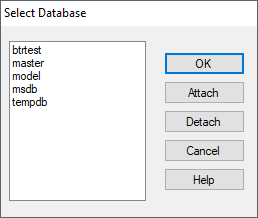
Figure 11 MigrateTable Settings
This dialog allows you to configure the batch file that will be generated for the migration. You can adjust the following settings:
Migration Tool: Choose between Migrate Table or Migrate File.
Num Threads: Set the number of parallel threads for the migration.
Overwrite Existing Table: Check to replace an existing table with the same name.
Full Migration / Copy Data Only: Select whether to create the full table structure and copy data, or only copy data to an existing table.
No Pause: Check to prevent the batch file from pausing on completion.
XML Config File: Optionally specify an XML configuration file.
Command Line: Shows the generated command line and batch file path.
Trace File Name / Level: Optionally specify a trace file and logging level for debugging.
Pressing Ok will generate the batch file. Pressing Call others in Batch will also generate batch files for the remaining selected files in the file list, using the same settings. This is useful for migrating multiple large tables in a single batch operation.
For more details on these settings, see the Migrate Table Tool section.
Fields Tab
The Fields tab allows you to change the data type mapping assigned to a column when the table is created on the SQL server. The Fields tab also lets you enter a default value for fields defined as NOT NULL. Fields created as NOT NULL need a default value that you provide if a value is not provided by the program or if the field is left blank.

Figure 11 Convert File – Fields Tab
Name
Displays the alphanumeric identifier for the field (the column name).
Type
Displays the Btrieve data type assigned to the field.
SQL Type
Displays the default field-type mapping that will be used when creating the SQL table during migration. You can modify this setting.
Binary
Allows you to tag string fields as binary during migration. Check this option if a string field contains non-ASCII values (<32 or >128).
Offset
Displays the field offset in the record buffer.
Size
Displays the field length in bytes.
Dec
Used for numeric fields, displays the number of decimal spaces the field can contain.
Null
Indicates whether NULL values are allowed in the field. You can change this setting, however, fields participating in an index cannot be NULL.
Default
Allows you to enter a default value to be used for a NOT NULL field when the field is left blank.
Indexes Tab
The indexes tab shows details of all keys and the fields that comprise the keys.

Figure 12 Indexes Tab
Field Name
Displays all the fields that make up the currently selected key.
Desc
Check to indicate this field is descending.
Case
Check to indicate this field is case insensitive.
NOTE: The PostgreSQL citext module provides the case-insensitive character string type CITEXT that allows for case insensitive fields without the need for inverse key columns.
Index Properties
Primary Key
Check to indicate this index is a primary key. All SQL databases perform exceptionally well with a correctly selected Primary Key. By default, the driver sets Index 1 in your Btrieve file as the primary key on the server. You can choose any index, as long as it is unique.
Unique
Check to indicate this index is unique.
NOTE: All Mertech drivers support auto-increment fields on the server-side. However, because of the limitation on MS SQL Server, it allows only one auto increment field per table. If you have an auto increment field and you expect that table to be accessed from other non-Btrieve programs, be sure to *`enable the auto-increment trigger <#enable-trigger-to-handle-auto-increment-and-inverse-key>`__ *for the table.
Oracle Storage Values (Oracle Only)
Initial
Displays the size of the first extent for Oracle index tablespaces. This value is only used for Oracle migrations.
Next
Displays the size of the next extent to be allocated when the initial space is full.
% Free
Displays the space reserved in each of the cluster’s data blocks for future expansion. The value of the parameter is expressed as a whole number and interpreted as a percentage.
Server-Specific Tab
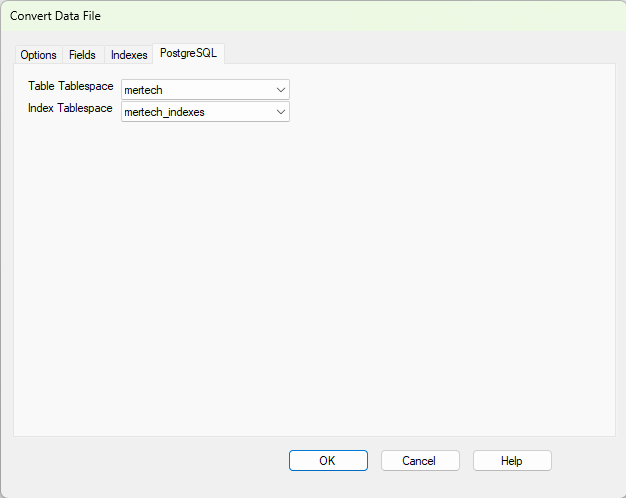
The server-specific (MSSQL and PostgreSQL in the example) tab contains settings that determine how the data is loaded.
PostgreSQL users can use the drop-down list in the PostgreSQL tab to assign different locations for the data and indexes for the currently selected tables.

|
|
Figure 13 MSSQL Tab |
Figure 14 PostgreSQL Tab |
Table Operations
The following table operations are available from the Table menu and from the popup menu displayed when you right-click file(s) in the File Selection dialog box.
Note
If converting a table has a million or more records, you should use the Migrate Table Tool. It is more efficient and faster than the other options.
Copy Data to Table
This option copies records from a Btrieve data file to a table that has already been created using Mertech’s BTR2SQL tool. Use this only if the table exists on the server. The following copy options can be selected:
Lock Table: Check to lock the table and prevent updates to the table while the data is being copied to the SQL server.
Erase Table: Check to erase the contents of the target table before the contents of the Btrieve data file are copied. If this option is NOT checked, rows from the Btrieve file are appended to any existing data.
Bulk Copy Operations: Migrating records to the database is much more efficient using a bulk copy operation. MSSQL lets you determine whether to commit updates based on the number of rows per batch or kilobytes per batch.
Create Table
Creates an empty table and associated indexes without migrating the data.
Select this option when you want to create table structures before loading data, or for creating blank tables that are later populated by the application.
Drop Table
Deletes a table in the target database for each data file that is selected in the FILE.DDF.
Truncate Table
Erases the contents of the table in the backend database that has the same name as the data file currently selected in the FILE.DDF.
Browse Btrieve Data
Displays the data for the highlighted file. The data is read from the native Pervasive / Btrieve file. You can also. You are prompted for the Pervasive database name. Enter the logical name for the Pervasive database that contains the selected file (for example, Demodata).
NOTE: The OLEDB provider for Pervasive.SQL must be installed to access the Btrieve files. The OLEDB provider is needed only for the data browsing function.
Browse SQL Table
Displays the data for the highlighted table. Retrieves data from the migrated SQL table.

Figure 16 Browse Data Dialog Box
NOTE: You can also double-click a filename to browse the data. If the file has not yet been migrated, the Btrieve file is opened. If the file was already migrated, the SQL table is opened.
Index Maintenance
This option allows you to check the index definition of each file, whether or not the indexes have been created properly, and to re-create or drop indexes on a file.
The most common reason why a Btrieve program does not perform optimally after migration to an SQL database backend is because the indexes were not properly created or not created at all. The driver fails to create indexes for a number of reasons, but the two most important are duplicate data and running out of disk space. For example, a Btrieve table might contain dates like 12/12/99 and 12/12/1999 in two separate records. Since BTR2SQL converts all dates to four-digits during migration, such data causes a unique constraint violation if this date field is part of an index.
For this option to work properly, make sure that your Btrieve files are present for comparing the database structures.

Figure 17 Index Maintenance
Select all the files in the File Selection dialog box.
<Right-click> on a file and select Index Maintenance.
BTR2SQL searches each Btrieve file and compares it to the index created on the server. If the index is not created, BTR2SQL displays it with a red check mark next to it.
If the index was not created, you can drop and re-create the table or drop and recreate the index using the Index Maintenance dialog box.
Specify Btrieve Ownership
In Btrieve, you can define an owner for a data file for security purposes. BTR2SQL cannot access these files unless the owner (password) is specified while opening these files. For migration purposes, BTR2SQL requires that you specify the owner name for these files to successfully migrate the data to the SQL Server.
The File Selection dialog box, shown in Figure 2, displays a lock icon for the files requiring the owner specification.
In the File Selection dialog box, select a file with  next to it.
<Right-click> and select Btrieve | Specify Owner Names…
The Specify Btrieve Ownership dialog box appears.

Figure 18 Specify Btrieve Ownership
Type the owner’s information in the Owner column.
Press OK.
Number
Number assigned to the file in FILE.DDF. This column is non-editable.
File Name
Name given to the Btrieve file. This column is non-editable.
Owner
Files owner information. The specified owner information is verified. If it does not match, you are prompted again to enter the information for that file.
Oracle-Specific Storage and Loader Options
The options in this section apply only to Oracle migrations and are provided for sites that still use the Oracle backend. For MS SQL Server and PostgreSQL migrations, use the standard migration options described above and the server-specific tab settings for the selected backend.
Analyzing Oracle Storage Requirements
IMPORTANT: This feature should be used before ANY data migration is done. Running out of disk space during data migration creates a situation where Btr2SQL does not properly create or migrate data.
This option dynamically calculates the server storage requirement for each individual table based on the Btrieve file sizes. The sizes indicated are in bytes. If the tablespace is not large enough, the tablespace is highlighted in red. In these cases, you can use Oracle’s Storage Manager utility to increase tablespace sizes.
NOTE: You must have rights to alter the tablespaces, even the ones to which you are migrating. You can change user rights using Oracle’s Enterprise Manager.
In the File Selection dialog box, select a Btrieve file(s) to be migrated to the SQL backend.
<Right-click> and select Oracle Specific Options | Analyze Storage Requirements.

Figure 19 Analyze Storage Requirements (Oracle Only)
Tablespaces
Tablespace
All tablespaces the current user can access.
Available (bytes)
Total remaining space for the tablespace. You can compare this to the Required Size of the tablespace to see if there is enough space.
Required Size (bytes)
The space required by the Btrieve files selected. This turns red if the required size is larger than the available size.
Totals
Remaining server-side space in bytes and the space required by the currently selected files.
Btrieve Data Files
Name
The name assigned to the selected Btrieve file.
Data Tablespace
The tablespace currently assigned for the migrated Btrieve data.
Recommendation: It is recommended that you create index and data tables on two separate tablespaces, preferably on separate hard drives. You can choose different tablespaces for index and data tables, and assign individual tables to different tablespaces using the Oracle-specific tab in the Convert File dialog box.
Size (bytes)
The space required on the server-side for the Btrieve table data.
Index Tablespace
The tablespace currently assigned for the migrated Btrieve indexes.
Size (bytes)
The space required on the server-side for the Btrieve index data.
Totals Data
Total space designated for data tablespace.
Totals Index
Total space designated for index tablespace.
Create Text File for Loader
SQL*Loader is the fastest way of populating new Oracle tables from a Btrieve file. BTR2SQL generates a text file from the Btrieve data file and also generates all the necessary control scripts for running SQL*Loader. At the end of this process, a file called loader.bat is generated that contains commands to run the loader scripts (generated by SQL*Loader) for each file. This loader can be run in client mode or server mode depending on whether or not the machine you are executing the loader scripts on is also the server. If not, you must select the client mode.

Figure 20 Create Text File for Loader (Oracle Only)
In the File Selection dialog box, select the Btrieve file(s) to be migrated to the SQL backend.
<Right-click> and select Oracle Specific Options | Create Text File for Loader.
Batch File Location
Create One File
If this option is checked, BTR2SQL creates a single batch file to load all the selected files. If this option is not checked, BTR2SQL creates individual batch files to load the data. Use the Browse button to select the location for the batch file.
SQL Loader Option
Client Execution
Indicates whether BTR2SQL executes the loader on the client or server machine. If the machine from which you are running the SQL*Loader is a client machine, then select the Client Execution option. This automatically puts the login information in the loader.bat file. For faster loading, Mertech recommends that you use the server mode option and run the loader.bat directly on the server, if possible.
You must run Analyze after Loader Execution after loading the data into tables using SQL*Loader.
Loader File Name
The name assigned to the SQL*Loader file.
In the Grid
For every file selected in the File Selection dialog box:
Table Name
The assigned table name.
Directory
Path to the selected Btrieve file.
File Name
The name of the Btrieve file.
Data File
The name that will be assigned to the text file if the exporting option is checked.
Direct
The load type. If checked, then the load type is direct. If unchecked, then the load type is conventional. A conventional path load executes SQL INSERT statements to populate Oracle tables. A direct path load eliminates much of the Oracle database overhead by formatting Oracle data blocks and writing the data blocks directly to the database files. Typically, direct load is faster than conventional load.
Export
Indicates whether or not you want to export data. If this option is checked, then BTR2SQL generates text files containing the data.
Analyze after Loader Execution
SQL*Loader is a specialized way of populating a table. SQL*Loader utility is run separately or asynchronously from BTR2SQL. Certain information pertinent to the Btrieve database and, consequently, to the Btrieve program (i.e. auto-increment sequence) needs to be adjusted before a Btrieve program can function properly. BTR2SQL goes through each file and compares the number of records migrated for each file to the number of records in Btrieve. If it finds a mismatch in the number of records, BTR2SQL identifies the records that did not match.
The log file generated by SQL*Loader, called <filename>.log, usually contains the information pertaining to which record(s) were NOT migrated. BTR2SQL does not analyze the information or logs that it generates. In order to ensure that the loader migrated all data correctly, this option must be run. This option also corrects the auto-increment sequences.
NOTE: If you do not execute ***Analyze after Loader Execution* after you migrate the database using SQL*Loader, then sequences and certain system statistics will be off and your application will not be able to perform FIND operations correctly.
In the File Selection dialog box, select all the files that were migrated to Oracle.
<Right-click> on a file and select Oracle Specific Options | Analyze after Loader Execution.
Adjust Sequence Definition
This option adjusts the start value of the sequence created. The sequence is the order of the values in the auto-increment column.
NOTE: When SQL*Loader is used to populate a table, the auto-increment values have to be adjusted. This needs to be done manually by using the Analyze after Loader Execution option.
Enable Trigger to Handle Auto-Increment and Inverse Key
This option enables a trigger that handles auto-increment fields and the inverse key on the specified table. If BTR2SQL created a table with the auto-increment column and you are using Mertech’s drivers with your Btrieve program, Mertech’s drivers automatically handle auto increment values. However, if you access and change the same table by a non-Btrieve program, then the auto-increment sequence is disturbed. To avoid this, use this option to enable a trigger that automatically fires when a record is added, deleted, or updated and perform the necessary operations for auto-increment handling.
To support descending index segments and case sensitive indexes, the drivers make use of a special key called inverse key. BTR2SQL creates inverse keys during data migration. Since this feature is specific to the driver, any updates to index fields in a migrated table using Mertech’s drivers require that you also update the inverse correctly, much the same as in auto-increment handling. Some backends use a trigger for maintenance of the inverse key values in the index. Through BTR2SQL, you can enable or disable this trigger. If the trigger is in place on a table, then the driver does not insert its own values and allows the values from the trigger to be used. There is only one trigger that handles both auto-increment and inverse key handling.
In the File Selection dialog box, select the file to have the trigger enabled.
<Right-click> and select the backend-specific option to enable the trigger for auto-increment and inverse key handling.
Handling of AutoInc Fields
AutoInc fields always retain their value during migration.
AutoInc fields are managed the same way whether records are added using B_INSERT or B_FAST_INSERT: If the value of an AutoInc field is zero the next sequential number is assigned, otherwise the value provided in the dataBuffer is used.
Disable Trigger to Handle Auto-Increment and Inverse Key
This feature disables the backend trigger used to handle the maintenance of inverse keys in the index of a data file.
In the File Selection dialog box, select the file to have the trigger disabled.
<Right-click> and select the backend-specific option to disable the trigger for auto-increment and inverse key handling.
Table Definition Files from Btrieve/Pervasive.SQL
This option creates the .INT file for each data file selected. The .INT file contains information about the structure of a specific data file.
Select a file(s) in the File Selection dialog box.
2. <Right-click> and select Generate | Table Definition Files from Btrieve.
Generate SQL Script for Creating Tables
This option generates SQL scripts for creating tables and indexes. This allows more control and security over the process of creating tables. The output is sent to a file, <filename.SQL> that can then be run using the appropriate SQL tool for the target backend, such as SQL Server Management Studio for MS SQL Server or psql/pgAdmin for PostgreSQL.
Select a file(s) in the File Selection dialog box.
<Right-click> and select Generate | SQL Script for Creating Tables.
Select the location for the SQL script.
Press OK.


 button to browse for the location where you want to save the migration report file.

